AltMode Index may earn a retail commission on qualifying purchases through our links at no added expense to you. How referral links support AltMode Index
Adding a second screen to a mobile desk sounds straightforward, but portable monitors carry practical friction that standard desktop displays rarely present. The primary challenge is not finding a thin panel; it is matching your laptop’s port capabilities, your workspace depth, and the display’s power demands so the setup remains genuinely portable.
A single-cable connection requires your laptop’s USB-C port to support DisplayPort Alternate Mode (DP Alt Mode), Thunderbolt, or USB4, alongside adequate power output. If your laptop port only transfers standard USB data, you will receive no video signal without an external adapter or an HDMI connection accompanied by a separate power cable.
The Core Compromises: Display Size and Workspace Fit
When selecting a portable display for a laptop, panels generally fall between 14 and 16 inches. Each size class targets a specific balance between physical footprint and usable screen real estate.
- 14-Inch Displays (16:10 or 16:9): These closely match compact ultrabooks. Their narrower profile fits comfortably on small coffee-shop tables, commuter fold-down trays, and crowded shared desks. Vertical height is modest, but they slip easily into standard laptop sleeves.
- 15.6-Inch Displays (16:9): The legacy standard for laptop screens. A 1080p 15.6-inch panel offers familiar scaling for office spreadsheets, messaging sidebars, and browser documentation without forcing heavy desktop scaling.
- 16-Inch Displays (16:10): These provide noticeably more vertical height, making them well-suited for coding, multi-row timeline editing, and side-by-side reference windows. However, they demand more table depth and sturdy stand mechanics.
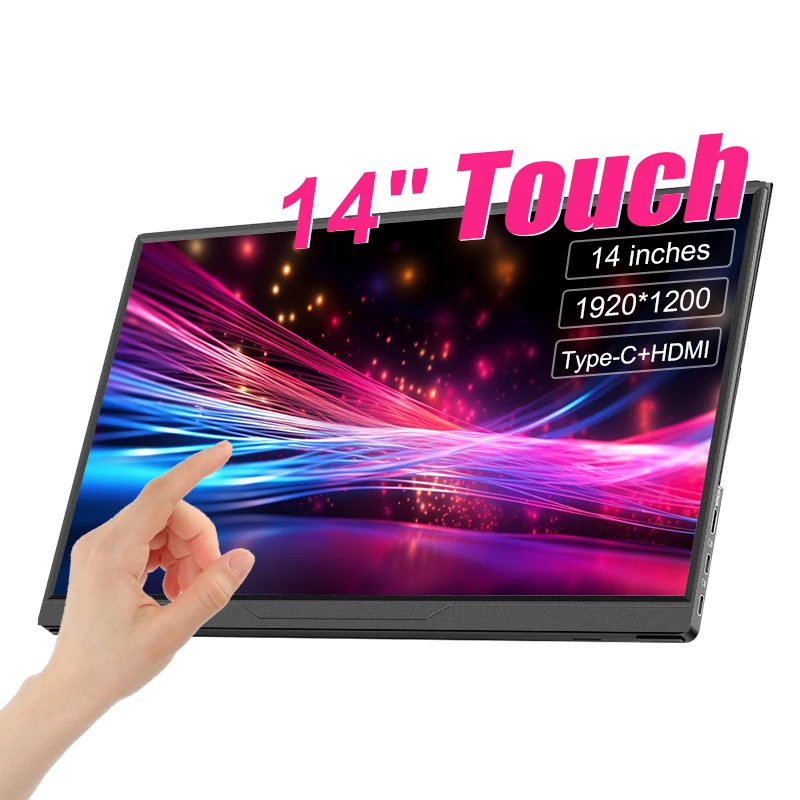
14-Inch Touch Display (1920×1200)
For mobile workers prioritizing a tight footprint, this 14-inch unit provides a 16:10 aspect ratio with an advertised 1200p resolution (1920×1200) and IPS technology. The seller listing claims touch functionality alongside dual input options: USB-C and HDMI.
- Who it suits: Users with compact 13- or 14-inch laptops needing an auxiliary screen for chat, code review, or lightweight document scanning that packs neatly into small bags.
- Practical caveats: Touch functionality over USB-C depends heavily on host operating system support and driver handling. When connecting via HDMI, touch input typically requires an additional USB connection back to the host machine for data transfer. Stated specifications reflect seller listing claims.
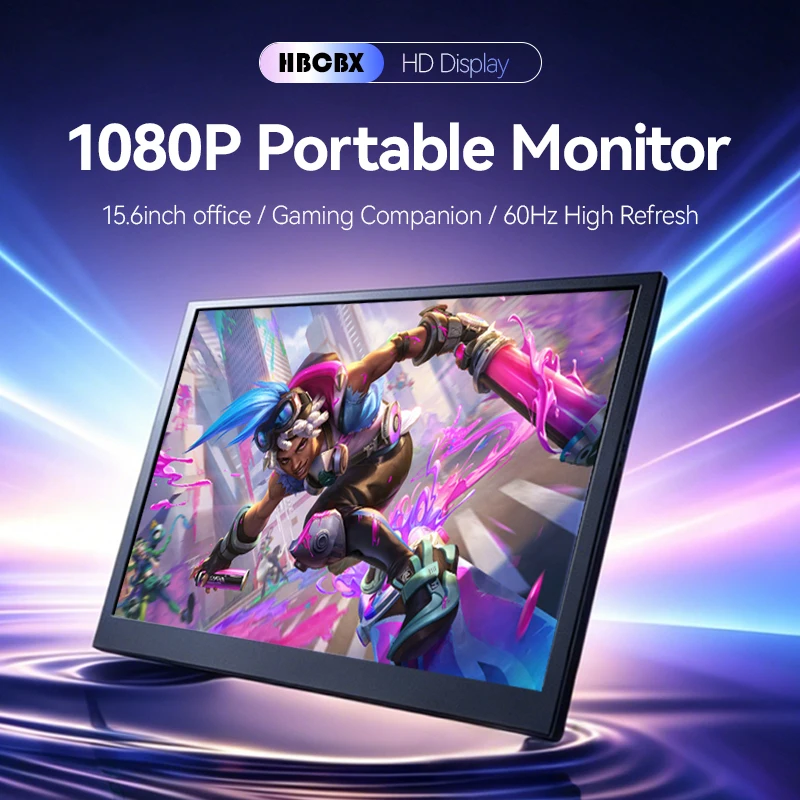
15.6-Inch FHD Display with Integrated Rear Stand
Occupying the classic form factor, this 15.6-inch display advertises a standard 1920×1080 resolution, 100% sRGB color gamut coverage, and an integrated rear kickstand design. It lists connectivity via USB-C and Mini HDMI.
- Who it suits: Standard office workflows, spreadsheet reference, and users who prefer a built-in tilt leg over fiddling with magnetic origami folio cases.
- Practical caveats: A 16:9 aspect ratio offers less vertical headroom than modern 16:10 options. Mini HDMI connections require either a dedicated Mini-to-Standard HDMI cable or an adapter, which introduces extra clutter if you cannot use single-cable USB-C.
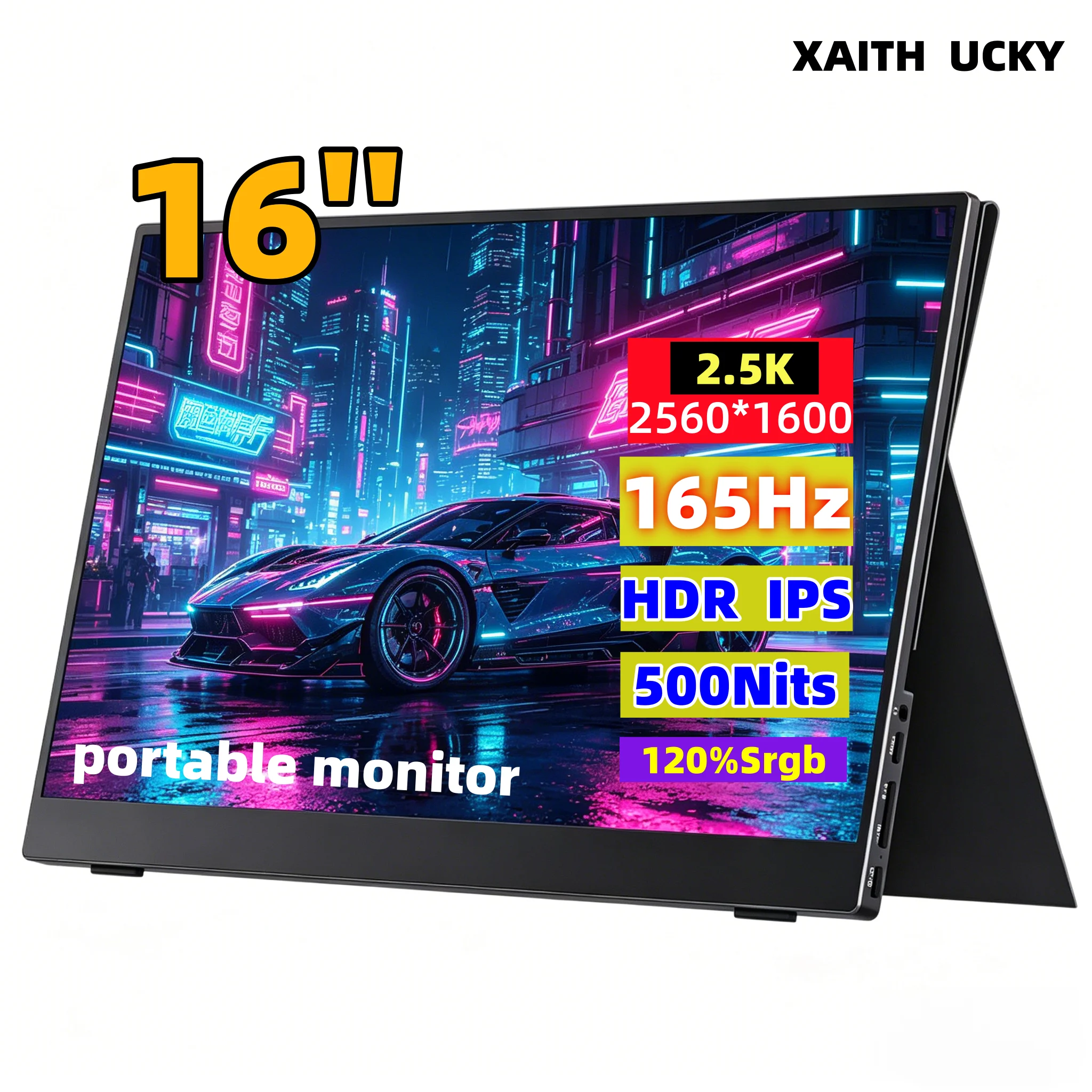
16-Inch High-Refresh 2K Display (2560×1600)
Targeted at users needing expansive visual fidelity, this 16-inch panel features advertised 2560×1600 resolution (16:10), a 165Hz refresh rate, 500 nits brightness, and HDR support. It provides both USB-C and HDMI inputs.
- Who it suits: Creative tasks, fast-motion video, gaming handheld companions, or knowledge workers who want crisp system scaling and ample vertical lines on a secondary display.
- Practical caveats: Driving 2560×1600 at high refresh rates alongside 500 nits of claimed backlight brightness increases host power consumption significantly. Using this display on laptop battery power will drain the machine quickly; bringing an external USB-PD charger is strongly advisable.
Understanding Power and Cable Requirements
Single-cable operation is the primary convenience of modern portable displays, but it hinges on physics that marketplace listings often gloss over.
| Setup Type | Cable Setup | Host Requirement | Typical Power Behavior |
|---|---|---|---|
| Single USB-C Cable | 1x Full-Featured Type-C | DP Alt Mode / Thunderbolt + 5V/1.5A+ power output | Laptop battery powers the monitor; brightness may throttle. |
| Pass-Through Charging | 2x USB-C Cables | Host supports USB Power Delivery input via Type-C | Wall adapter powers monitor and charges laptop simultaneously. |
| HDMI + Auxiliary Power | 1x HDMI + 1x USB Power Cable | Standard HDMI or adapter; separate USB-A or USB-C power source | Independent; no video or power bandwidth shared over single port. |
Not every USB-C cord is capable of carrying high-bandwidth video and charging currents. Generic cables designed exclusively for smartphone charging frequently lack the high-speed data lanes required for video delivery.
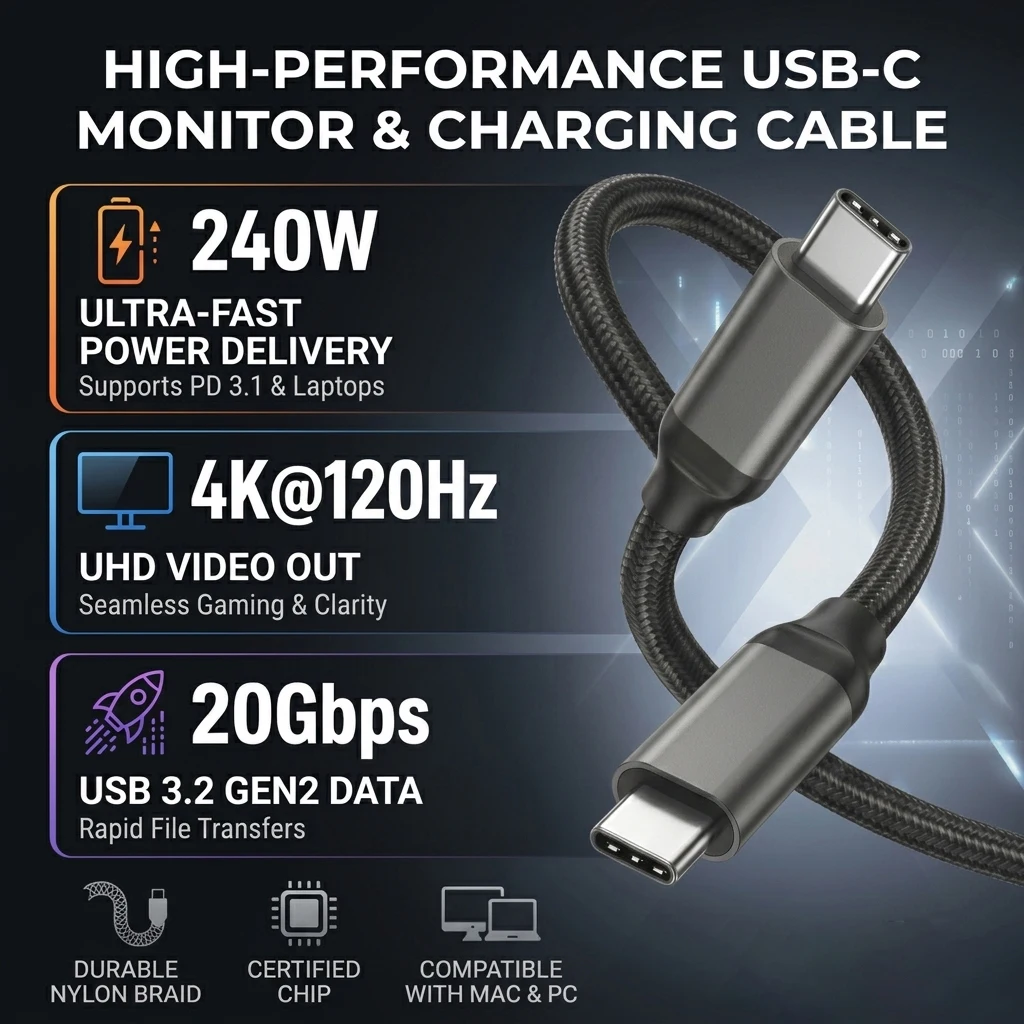
When running high-resolution panels, having a verified full-featured USB-C cable—such as a cable rated for 20Gbps data throughput and high-wattage power delivery—prevents display signal drops, screen flickering, and unexpected power disconnections during sustained work sessions.
Key Verification Questions Before Finalizing Your Choice
Because budget and unbranded portable displays vary across production batches and seller stores, confirm these technical factors in the product documentation before checking out:
- Does your laptop manufacturer explicitly list DP Alt Mode? Check your machine’s exact service manual. If the port only mentions "USB 3.2 Gen 1 Data," it cannot drive a monitor without a dedicated DisplayLink dock or HDMI conversion.
- What cables are included in the retail box? Many listings illustrate cables that may be sold separately or supplied in short lengths. Verify whether full-featured Type-C and HDMI cables are included.
- What is the physical stand mechanism? Magnetic folio cover stands offer basic folding angles but can slide on smooth desk surfaces. If you frequently reposition your screen, an integrated kickstand or rear hinge provides superior stability.
- Will the panel require independent wall power? High-brightness (400+ nits) and high-refresh panels draw higher wattage. If you plan to work away from wall outlets, factor the added battery drain into your workflow.